
Roblox isn’t just a game anymore; it’s the virtual playground of this generation. It’s where our kids hang out after school, build virtual theme parks, adopt digital pets in “Adopt Me!,” and, inevitably, make new online friends.
While it’s amazing to see their creativity explode, that little “Friends” icon in the corner of their screen can make a parent’s stomach drop. Who are these people? Are they actually other 8-year-olds, or someone else entirely? Until recently, managing these connections felt like trying to herd cats.
But guess what? The game has changed.
Parents finally have more control. Roblox has rolled out updates that give us the power back. If you’ve been losing sleep wondering how to manage Roblox friend lists for kids effectively, take a deep breath. We will walk you through exactly how to curate their online circle, block unwanted accounts directly, and ensure their digital playground stays safe.
Let’s dive into how you can become the “bouncer” of your child’s virtual world—without totally ruining their fun.
The “Roblox Craze” and Why We Worry
Before we get into the “how-to,” let’s acknowledge why this is such a big deal.
As parents, we spend so much time ensuring our kids are safe in the real world. We buy them comfortable, high-quality clothes from Noor Kids Clothing so they can play freely. We teach them about stranger danger at the park. We monitor who they have sleepovers with.
But the digital world is trickier.
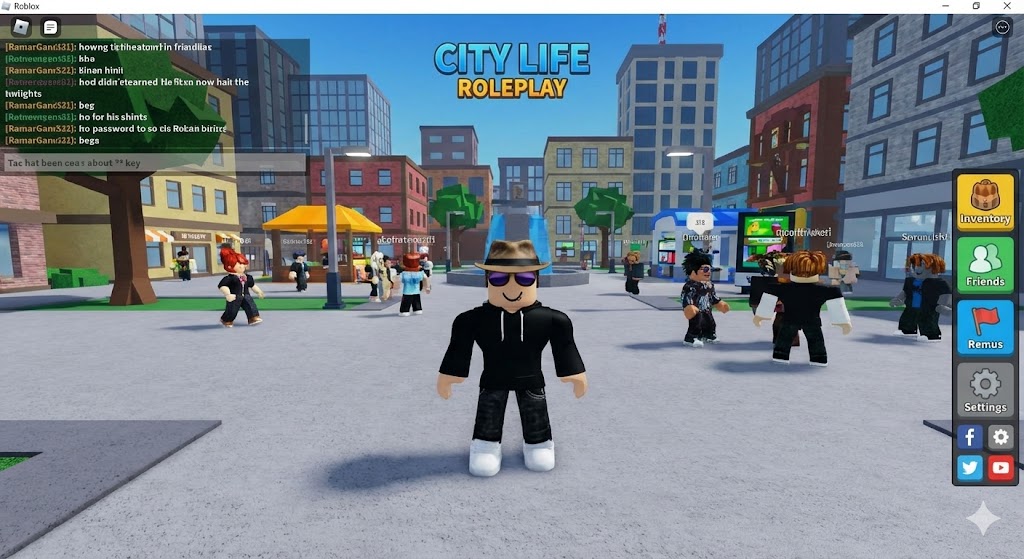
Roblox is fundamentally a social platform. The entire design encourages interaction. Kids want to team up to win obbys (obstacle courses) or trade items. To do that easily, they add each other as “friends.” Before you know it, your seven-year-old has 150 “friends” they’ve never actually met.
The worry isn’t just about creepy strangers (though that’s the biggest fear). It’s also about:
-
Cyberbullying: Mean comments from “friends” in chat.
-
Inappropriate exposure: Kids are being exposed to language or game themes not meant for their age.
-
Scams: “Friends” trying to trick your child out of their hard-earned Robux or valuable in-game items.
For years, the controls to handle this were clunky at best. You had to log into your child’s account, navigate confusing menus, and hope for the best. Parents were clamoring for a better way to know how to manage Roblox friend lists for kids without needing a degree in computer science.
The Big Change: Giving Power Back to Parents
Roblox listened. Facing pressure from safety advocates and concerned parents globally, they realized they needed to hand over the keys to the friend list.
Previously, a child could accept almost any friend request. If you, as a parent, saw someone suspicious, removing them was a hassle, and your child could just re-add them five minutes later.
The new updates have shifted this dynamic. They introduce more granular controls designed to be managed by the parent, usually protected by a PIN.
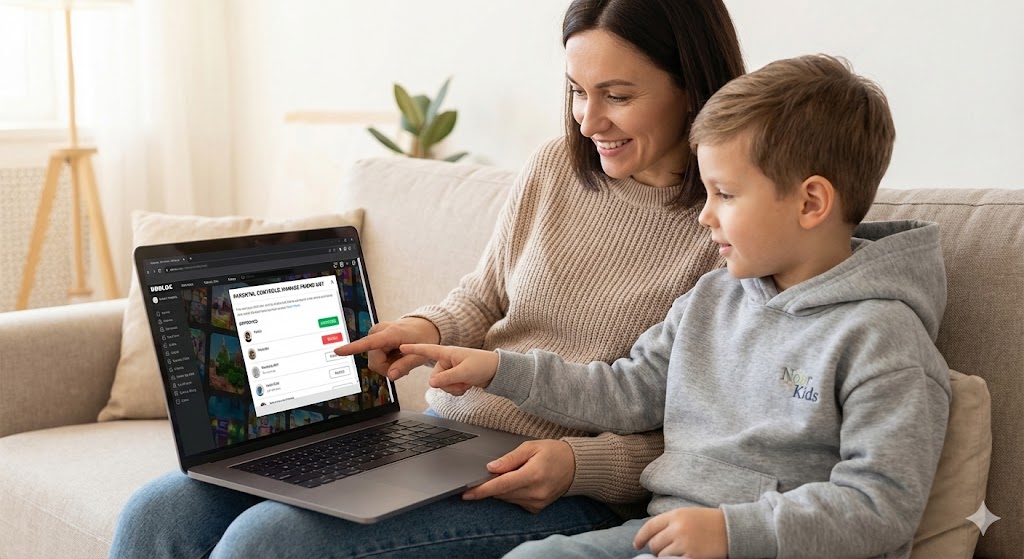
What does this new power look like? It means you aren’t just reacting to problems; you are proactively setting the boundaries. You can now view their friend list directly through parental control views and, crucially, take action on specific “friends” right then and there. It turns the friend list from an open door into a gated community that you hold the clicker for.
Step-by-Step Guide: How to Manage Roblox Friend Lists for Kids
Okay, let’s get practical. How do you actually do this?
We are going to break down the process of securing your child’s account. To truly understand how to manage Roblox friend lists for kids, we need to start with the foundation: The Parent PIN.
Step 1: The Golden Key – Setting Up the Parent PIN
If you do nothing else today, do this. Without a Parent PIN, your tech-savvy child can simply undo whatever changes you make.
-
Log into your child’s Roblox account on a computer (it’s easier than mobile for setup).
-
Click the Gear icon (Settings) in the top right corner.
-
Select Settings.
-
On the menu on the left, click Parental Controls (sometimes labeled as Security or Privacy depending on recent updates, but look for the Parental options).
-
Look for the Parent PIN option. Turn it ON.
-
You will need to enter a 4-digit PIN. Do not use your child’s birthday. Use something you will remember but they won’t guess.
Note: Once this PIN is set, you will need to enter it anytime you want to change critical settings—including friend settings.
Step 2: Viewing and Auditing the Current Friend List
Before you start blocking, you need to see what you’re dealing with.
-
Go back to the main Roblox home screen.
-
On the left-hand menu bar, click Friends.
-
Scroll through this list with your child.
Top Tip: Make this an interactive activity, not an interrogation. Ask open-ended questions: “Who is ‘MegaBloxMaster’? What game did you meet them in? Do you talk to them much?” Their answers will tell you a lot about whether this is a “safe” connection.
Step 3: The New Power – Blocking and Unfriending
Here is the core of how to manage Roblox friend lists for kids. If you find a user “SuperGamer99” who seems to be an adult, uses bad language in chat, or just gives you a bad feeling, you can remove them completely.
There is a difference between “Unfriending” and “Blocking.”
-
Unfriending just removes them from the list. They could potentially send a request again later.
-
Blocking prevents them from ever contacting your child, seeing their profile, or joining their games again.
To Block/Unfriend a user:
-
Go to the child’s Friend list.
-
Click on the profile picture of the user you want to remove. This takes you to their profile page.
-
Look for the three dots (…) usually near their username or the “Chat” button.
-
A menu will pop up. You will see options to Unfriend or Block User.
-
If you choose Block, confirm the action. Poof! They are gone from your child’s Roblox existence.
Step 4: The Pre-emptive Strike – Restricting Who Can Send Requests
Blocking existing bad actors is great, but knowing how to manage Roblox friend lists for kids means stopping the problem before it starts.
You can lock down the account so that no one can send friend requests, or only specific groups can.
-
Go back to Settings (click the gear icon).
-
Enter your Parent PIN.
-
Click on the Privacy tab on the left.
-
Scroll down to the “Who can interact with me?” section.
-
Look for settings like “Who can send me friend requests?” or “Who can chat with me?”
-
Change these settings from “Everyone” to “Friends” or, for maximum safety, “No one.”
If you set it to “No one,” your child cannot add friends at all. This is often the best option for younger kids (under 9 or 10). For slightly older kids, setting chat to “Friends” only is a good middle ground.
Beyond Blocking: Having the “Safety Talk”
Learning the technical steps of how to manage Roblox friend lists for kids is vital, but it’s only 50% of the solution. The other 50% is communication.
If you just go into their account and block ten people without explanation, you are going to have a very angry child. They might feel like you are invading their privacy or ruining their fun.
We need to frame this correctly. Just like we buy them soft, durable clothing from Noor Kids Clothing so they feel secure and comfy in the real world, we are setting these rules to keep them secure in the virtual world.
How to approach the conversation:
-
Explain, Don’t Just Dictate: Tell them why you are doing this. “Hey, there are some people online who pretend to be kids but aren’t. My job is to keep you safe, so we need to make sure your Roblox friends are people we actually know.”
-
The “Real Life Test”: A great rule of thumb to teach your kids is: If you wouldn’t invite them into our living room for a snack, they shouldn’t be on your Roblox friend list.
-
Create a “Whitelist”: Instead of just banning everyone, agree on who can be a friend. Cousins, school classmates they know in person, or neighbors are usually safe bets.
-
Keep the Door Open: Remind them that if anyone—even someone on their “approved” friend list—says something weird, asks for personal info, or asks them to keep a secret, they need to tell you immediately.
Frequently Asked Questions (FAQs) about Roblox Friends
We know parents have a ton of questions about this. Here are the most searched FAQs regarding Roblox interactions, answered for you.
Q1: Can I see my child’s private chats on Roblox? A: Generally, yes, if you are logged into their account. You can click on the chat box in the bottom right corner to see recent conversations with friends. However, Roblox uses automated filtering to block inappropriate words. Crucially, if you set the Privacy settings so that “Who can chat with me?” is set to “No one,” the chat feature is disabled entirely.
Q2: If I block someone on my child’s account, will that person know? A: No, Roblox does not send a notification to a user that they have been blocked. They will simply find that they can no longer see your child’s profile, message them, or join their games. It looks like the account has just disappeared for them.
Q3: My child is begging me to add a friend they met in a game because they are “really good at the game.” Should I allow it? A: This is a judgment call, but generally, caution is best. If you decide to allow it, ensure your Privacy settings are set so that this new “friend” cannot chat privately with your child. You should also monitor their joint gameplay for the first few sessions. Teaching your child how to manage Roblox friend lists for kids alongside you is a great learning opportunity.
Q4: Is Roblox safe for a 7-year-old? A: Roblox is rated E10+ (Everyone 10 and up) by the ESRB. However, millions of younger kids play it. It can be safe if—and only if—parents are highly involved. For a 7-year-old, we strongly recommend turning off all chat features, setting friend requests to “No one,” and only allowing them to play “curated” games that are known to be kid-friendly.
Q5: How do I stop my child from spending money on their “friends”? A: This is a common scam! Ensure your credit card is NOT saved on the device they play on. Use Roblox gift cards instead to set a hard limit on spending. Also, teach your child that real friends never ask for money or Robux online.
Conclusion
The digital world moves fast, and it can feel overwhelming to keep up with the latest apps, games, and the potential risks involved with each.
But the recent changes Roblox has made are a massive win for parents. They have given us the tools to take charge. By setting a PIN, auditing that friend list, and proactively using the block features, you can turn Roblox back into what it should be: a fun, creative outlet.
Mastering how to manage Roblox friend lists for kids isn’t about being an overbearing helicopter parent; it’s about being a digital lifeguard. You are setting the boundaries of the pool so they can swim safely.
So, tonight, grab your laptop, sit down with your little gamer (maybe while they are cozy in their favorite Noor Kids outfit!), and take control of that friend list. You’ll both sleep better for it.